Verified July 19, 2026
Taskbar Hero on Linux and Steam Deck: Proton setup and fixes
The Steam listing exposes a Windows build, not a native Linux package. Linux players can test the game through Steam Play and Proton, but its taskbar-style window makes focus, scaling, panel placement, clicking, updates, and save sync more important than a normal full-screen install.
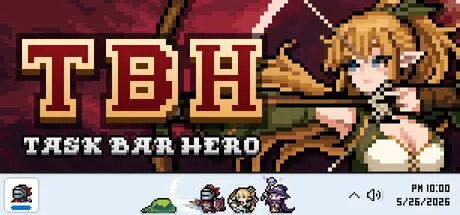
Short answer: no native Linux build, but Proton testing is reasonable
As of July 19, 2026, Steam's first-party app data marks Windows as supported and Linux/macOS as unsupported. That does not mean the game can never open under Proton; it means Linux is not the advertised native target and behavior can change after a patch. Treat a successful launch as compatibility, not official Linux support.
- Install from the official Steam library only; do not download unofficial Linux packages.
- Start with the current stable Proton release before Experimental or community builds.
- Test focus, transparency, clicking, audio, saves, relaunching, and Steam Cloud before a long idle session.
- Keep a Windows fallback if you need predictable taskbar integration or account-sensitive market features.
Official support versus compatibility layers
The useful distinction is not simply whether the process launches. Native support, compatibility through Proton, and handheld usability are different claims with different reliability.
| Platform | Status on July 19, 2026 | Practical advice |
|---|---|---|
| Windows 10 / 11 | Official Steam target | Use this path for the most predictable window placement, overlays, updates, and support. |
| Linux desktop | No native Linux package shown | Test the Windows build through Proton and expect window-manager-specific behavior. |
| Steam Deck | Compatibility path, not a native build | Desktop Mode is the best first test because the game is designed around a desktop/taskbar presentation. |
| macOS | No native macOS package shown | Do not assume Proton steps apply to macOS; consider Windows or remote play. |
Platform flags can change. Recheck the official store page after major updates instead of relying on old screenshots or forum comments.
Check these four things before installing
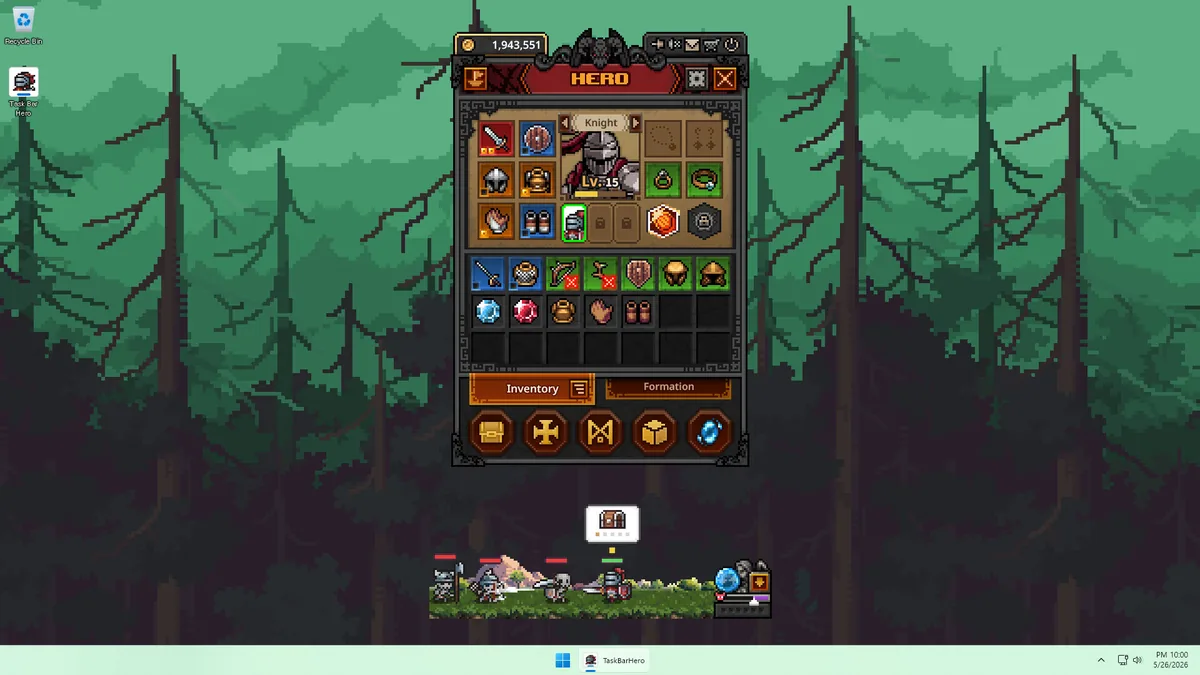
Taskbar Hero is visually tied to the desktop edge and uses a compact windowed interface. On Linux, the desktop environment and compositor can matter as much as raw GPU performance.
Desktop session
Record whether you use Wayland or X11 and which desktop environment is active. This is the first comparison when clicks or placement fail.
Steam Play
Confirm Steam Play is enabled. Avoid stacking launch tweaks before a clean baseline test.
Display scaling
Start at 100% scaling on one monitor. Mixed DPI, fractional scaling, and vertical panels can offset a small window.
Save safety
Verify Steam Cloud and exit normally after a short test. Delay unattended farming, purchases, and market activity until relaunch is stable.
A clean Proton setup order
Change one variable at a time so you can identify whether a fix came from Proton, the compositor, scaling, or a launch option.
Install the official Steam build
Use the official app page or Steam library. Avoid repacked executables, unofficial AppImages, and third-party installers claiming to be a native port.
Try the default compatibility choice
Launch once without custom options. If nothing starts, force the current stable Proton version in Properties > Compatibility.
Compare Proton Experimental if needed
Use Experimental as a controlled second test and record the exact version that launches cleanly.
Test window behavior before performance
Check visibility, clicks, focus, monitor placement, and recovery after Steam restarts. High frame rate does not fix broken desktop interaction.
Add launch options last
Test one narrowly targeted option, then remove it if the improvement is not repeatable.
Proton-GE is a community build. Use it only after stable and Experimental Proton have been tested, and document the exact version.
Common Linux launch and window problems
Start with reversible checks. Avoid deleting prefixes or save data as a first response because destructive resets can remove progress and hide the cause.
| Symptom | First check | Next step |
|---|---|---|
| Play button returns to Play | Verify files and inspect the newest Steam or Proton output. | Remove custom options, then compare stable Proton with Experimental. |
| Window is invisible or off-screen | Disconnect extra monitors and return scaling to 100%. | Compare Wayland and X11 before resetting display data. |
| Clicks miss buttons or focus drops | Disable overlays, panel auto-hide, and unusual desktop effects. | Test application-specific window rules instead of global compositor changes. |
| Text or UI is too small | Try a temporary lower resolution or desktop magnifier. | Apply one DPI change and verify that hitboxes still match controls. |
| Save or Steam Cloud conflict | Stop the game on every device and read the sync warning. | Preserve copies and identify the newest valid save before continuing. |
| Audio or idle behavior stops | Check suspend, background limits, and audio routing. | Disable sleep only for the test instead of changing the whole system permanently. |
Steam Deck: test Desktop Mode before Gaming Mode
Taskbar Hero is built around a desktop-edge concept. A handheld can launch the executable yet still provide awkward controls, so judge usability separately from launch success.
Desktop Mode first
It exposes the panel, pointer, window controls, and Steam compatibility settings needed for diagnosis.
Mouse-style input
The Steam feature list includes a mouse-only option. Prepare trackpad or touchscreen input for small controls.
Sleep and resume
Run a short suspend test and confirm timers, audio, focus, and Steam Cloud after waking.
External display
When docked, test resolution, scaling, and panel position again because the layout can move.
Safe test plan before a long Linux session
A ten-minute controlled test is more useful than immediately copying random launch flags. Keep a small record so changes can be reversed after a patch.
- Record distribution, desktop environment, Wayland/X11, GPU driver, and Proton version.
- Launch, close, and relaunch twice before creating a long idle session.
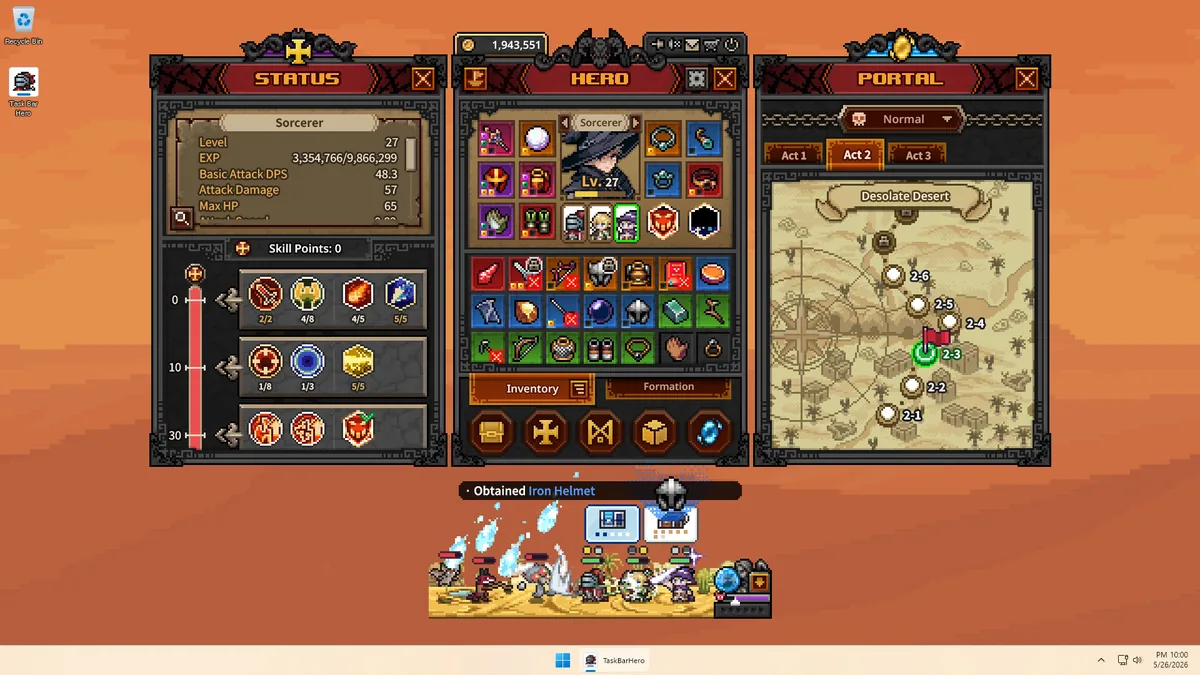
- Open the hero, status, inventory, map, and settings panels and verify click alignment.
- Check sound, focus, transparency, panel placement, and workspace switching.
- Confirm the save timestamp and Steam Cloud state before using another computer or Steam Deck.
- After a game or Proton update, retest without assuming the previous workaround is still required.
Sources and evidence boundary
First-party Steam data is used for platform and release facts. SteamDB and Proton documentation are supporting technical references; community compatibility is not presented as an official Linux promise.
FAQ
Does Taskbar Hero have a native Linux version?
The official Steam app data checked on July 19, 2026 exposes Windows support and does not mark Linux as a native platform. Proton may run the Windows build, but that is compatibility rather than a native release.
Which Proton version should I use?
Start with Steam's current stable Proton choice, then test Proton Experimental if the game does not launch. Record the exact working version.
Is Taskbar Hero Steam Deck verified?
Do not treat a launch report as a guarantee. Test Desktop Mode, pointer input, scaling, sleep/resume, and cloud saves on your device.
Should I use Proton-GE?
Only after stable Proton and Experimental have been tested. Proton-GE is community maintained, so keep its version number.
Can I copy Windows launch options from another game?
Not safely by default. Add one targeted option at a time and remove it when it does not create a repeatable improvement.
What should I do after an update breaks compatibility?
Verify files, remove old launch options, retest stable and Experimental Proton, and preserve saves before considering a prefix reset.