Verified July 22, 2026
Task Bar Hero Mac Guide: Can You Play on macOS?
Task Bar Hero does not currently list a native macOS build on Steam. Mac players should treat Remote Play from a Windows PC as the most predictable route, while CrossOver-style compatibility layers remain experimental and can fail on the game's unusual desktop-edge window behavior.
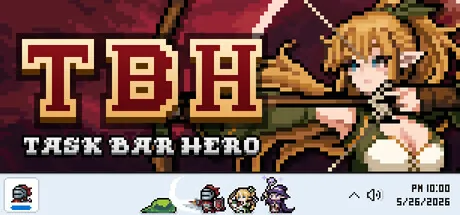
Short answer: there is no native Task Bar Hero Mac build
As of July 22, 2026, the official Steam listing shows Windows requirements and does not advertise macOS support. The safest Mac experience is to own and run the Steam version on a Windows PC, then stream it to the Mac. A Windows compatibility layer may launch it on some Macs, but that is not official support and must be tested after every game or macOS update.
- Do not download a file advertised as an official Task Bar Hero Mac or DMG installer unless the developer adds one to a first-party channel.
- Use Steam Remote Play when you have access to a Windows host and want the lowest setup risk.
- Treat CrossOver, Whisky, Wine, and virtual-machine results as device-specific experiments rather than guaranteed fixes.
- Test focus, transparent backgrounds, mouse input, scaling, audio, saves, and relaunching before leaving the game idle.
Official Mac support versus practical workarounds
The key decision is whether you need an officially supported local install or simply a workable way to play from a Mac. These routes have different costs, requirements, and failure modes.
| Option | Status on July 22, 2026 | Best use |
|---|---|---|
| Native macOS app | Not listed by Steam | Wait for a developer announcement; do not trust unofficial DMG downloads. |
| Steam Remote Play | Official Steam streaming feature | Best choice when a Windows gaming PC can host the game. |
| CrossOver / Wine-style layer | Unofficial compatibility route | Useful for testing, but window placement and input can break after updates. |
| Windows virtual machine | Possible but resource-heavy | Consider only if you already own a compatible Windows virtualization setup. |
| Boot Camp | Intel Mac only | Apple silicon Macs do not support the traditional Boot Camp Windows path. |
A successful launch does not make a route officially supported. Recheck Steam platform icons and the developer's announcements after major patches.
Choose a Mac route before installing anything
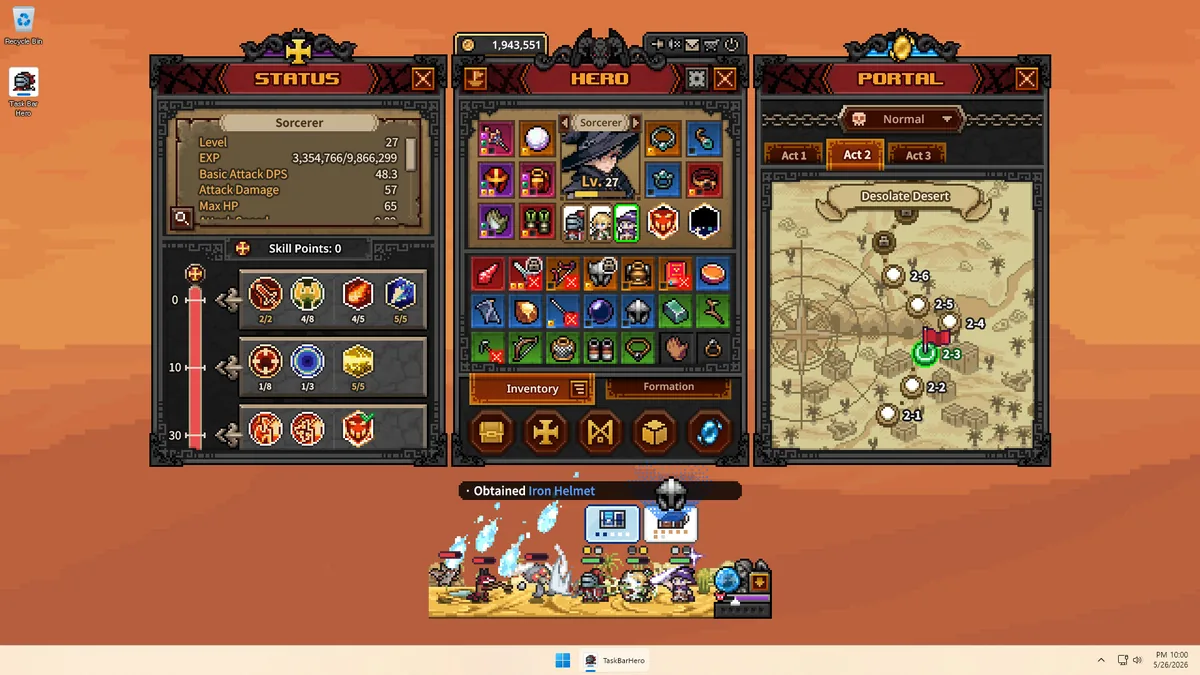
Task Bar Hero sits at the desktop edge instead of behaving like a conventional full-screen game. That makes the display server, window compositor, scaling, focus, and pointer capture unusually important.
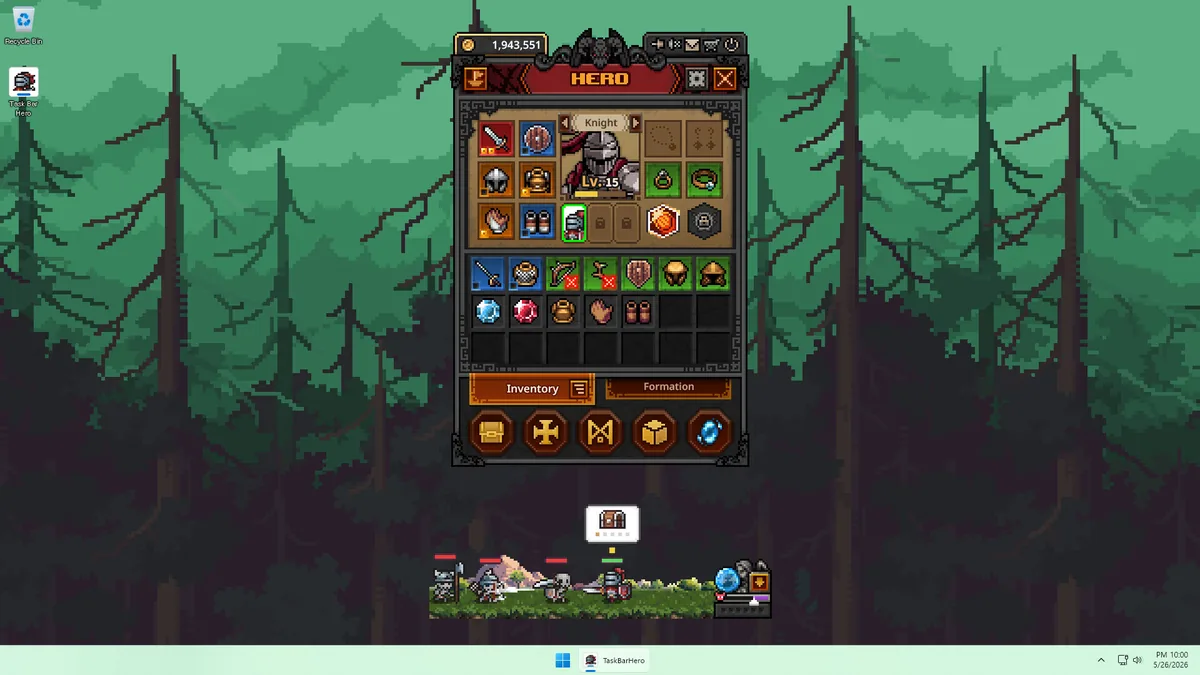
Use Remote Play for reliability
Choose this when you have a Windows PC, stable local networking, and want Steam to handle installation and updates on the supported host.
Test a compatibility layer locally
Choose this only if you accept troubleshooting and can remove the bottle or prefix without risking your main Steam library.
Use Windows on an Intel Mac
Boot Camp can provide a true Windows environment on supported Intel models, but storage, drivers, and future support still matter.
Wait for native support
Choose this if you need predictable performance, official support, or account-sensitive features without workarounds.
How to play Task Bar Hero on Mac with Steam Remote Play
Remote Play keeps the game installed on a supported Windows host while the Mac receives video and sends controls. This avoids pretending a Windows executable is a native Mac app.
Prepare the Windows host
Install Task Bar Hero from Steam, launch it once, confirm saves, and leave Steam signed in on a trusted network.
Install Steam on the Mac
Sign in to the same account, enable Remote Play on both systems, and keep both devices updated.
Start with a local network
Use wired Ethernet or strong 5 GHz/6 GHz Wi-Fi first. Reduce streaming resolution before changing game settings if latency is high.
Verify desktop-edge behavior
Check mouse clicks, scaling, audio, focus changes, and whether the small game window remains readable in the streamed desktop.
End the session cleanly
Exit the game on the host, wait for Steam Cloud synchronization, and confirm the next launch before relying on long idle progress.
Remote Play still requires a capable Windows host; it is a streaming solution, not a native Mac download.
Mac fixes for common launch, input, and display problems
Change one variable at a time. Start with a clean bottle, prefix, stream, or virtual machine snapshot so you can identify which change helped.
| Symptom | First check | Next step |
|---|---|---|
| Steam shows Install only on Windows | Confirm the store still lacks a macOS icon | Use Remote Play or a separately maintained compatibility environment. |
| Black or opaque background | Disable extra overlays and reset graphics overrides | Try a different compatibility-layer version; transparency may not translate correctly. |
| Clicks miss the small window | Set macOS display scaling to a standard value | Test windowed desktop streaming or a different virtual desktop resolution. |
| Game launches, then closes | Remove custom launch flags and verify Steam files on the Windows host | Create a fresh bottle or prefix instead of stacking old fixes. |
| Idle progress or saves look wrong | Close the game normally and wait for Steam Cloud | Keep backups and avoid switching hosts until the latest save is visible. |
Apple silicon and Intel Macs need different expectations
Do not copy an Intel Mac tutorial onto an M-series Mac without checking the architecture and Windows path it assumes.
M1, M2, M3, M4 and newer
Traditional Boot Camp is unavailable. Remote Play is the lowest-risk route; CrossOver-style tools or ARM virtualization add translation layers and may behave differently by macOS version.
Intel Macs
Boot Camp may offer the closest supported-Windows environment on compatible hardware, but check Apple's model and Windows support documentation before repartitioning.
Low-memory Macs
Virtual machines and streaming clients compete with browsers and background apps. Close heavy tasks and test thermals before long sessions.
External displays
Retina scaling and mixed-DPI monitors can shift the compact interface. Test the built-in display first, then reconnect external screens.
A safe five-minute Mac compatibility test
Pass this checklist before investing time in a local workaround or leaving the game running unattended.
- Confirm the installer and account flow come from Steam or another first-party developer channel.
- Launch, close, and relaunch twice without custom patches or unofficial executables.
- Open every visible menu and verify clicks line up with buttons and inventory slots.
- Change focus to another app and return; check that audio, transparency, and placement recover.
- Create a short progress change, exit normally, wait for Steam Cloud, and verify the save on the next launch.
- Record the Mac model, chip, macOS version, tool version, and working settings before updating anything.
Official references checked
Platform support can change. These first-party pages were checked on July 22, 2026; revisit them after major updates.
Task Bar Hero Mac FAQ
Is Task Bar Hero available for Mac?
No native macOS version is advertised on the official Steam listing as of July 22, 2026. Recheck the platform icons before buying hardware or installing a workaround.
Can Task Bar Hero run on an M1 or M2 Mac?
Possibly through Remote Play, a compatibility layer, or ARM virtualization, but none of those turns it into an officially supported native Mac app. Remote Play from Windows is the most predictable option.
Is there an official Task Bar Hero DMG download?
No verified official DMG is currently listed. Avoid third-party Mac installers that cannot be traced to Steam or the developer.
Does CrossOver run Task Bar Hero?
Results can vary by Mac chip, macOS version, CrossOver version, and game update. Test in a separate bottle and verify window transparency, input, saves, and relaunching.
Should I use Boot Camp for Task Bar Hero?
Only supported Intel Macs can use the traditional Boot Camp path. Apple silicon Macs require a different approach such as Remote Play or a third-party compatibility environment.