Taskbar Hero save location: backup, Steam Cloud, and recovery
Use the Taskbar Hero save location guide to preserve SaveFile_Live.es3, compare local and cloud copies, move a save to another PC, and recover carefully when progress appears missing.
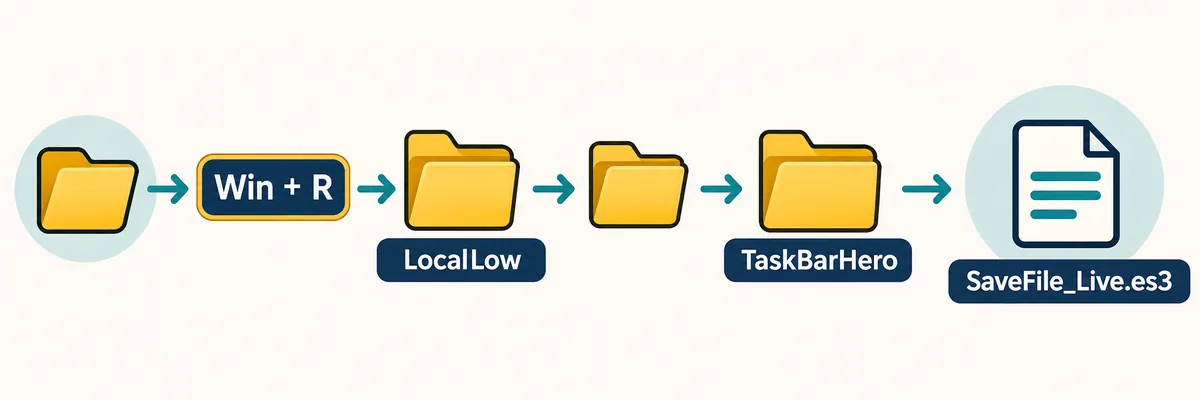
Short answer: the save is in LocalLow
The Taskbar Hero save location on Windows is %USERPROFILE%\AppData\LocalLow\TesseractStudio\TaskBarHero. Paste that path into Windows Explorer or Win + R. The live file is SaveFile_Live.es3. Official help also lists SaveFile_Live_1.es3 through SaveFile_Live_5.es3 and timestamped backup files. Close the game, wait for Steam Cloud to settle, and copy the whole folder before replacing anything.
- Exit the game and wait until Steam no longer shows a sync in progress.
- Copy the complete TaskBarHero folder to a dated folder on another drive or safe location.
- Compare the local modified time with the last Steam Cloud upload before moving between PCs.
- If progress is missing, preserve the current folder first, then check files, Cloud, and backups in that order.
How to open the Taskbar Hero save location
The Taskbar Hero save location is separate from the Steam installation folder. Searching the game install directory usually finds executables and content, not the normal save. Windows stores the player data under the current user profile in LocalLow, so a direct path is faster and less error-prone than browsing through every folder.
Open File Explorer and paste %USERPROFILE%\AppData\LocalLow\TesseractStudio\TaskBarHero into the address bar. You can paste the same path into Win + R. AppData may be hidden in normal browsing, but a direct path still works. The official help article and the pinned Steam recovery FAQ use slightly different capitalization; use the real folder shown on your machine rather than creating a second folder with a similar name.
| Entry point | What to enter | What to confirm |
|---|---|---|
| Win + R | %USERPROFILE%\AppData\LocalLow\TesseractStudio\TaskBarHero | TaskBarHero folder |
| File Explorer | Paste the same path in the address bar | SaveFile_Live.es3 |
| Manual browse | Start at LocalLow and follow each folder | TesseractStudio then TaskBarHero |
- Close Taskbar Hero before opening or copying the folder.
- If the folder is not visible, walk down from LocalLow to TesseractStudio and then TaskBarHero.
- Do not confuse a third-party importer folder with the game's official local save folder.
- 1. Open Run Press Windows key plus R and paste the path.
- 2. Check the folder Confirm that TaskBarHero is below TesseractStudio.
- 3. Record the files Write down SaveFile_Live.es3, backup names, sizes, and modified times.
The path comes from the developer help article. Do not replace the user profile name or drive letter with a guessed fixed value.
What each save file does
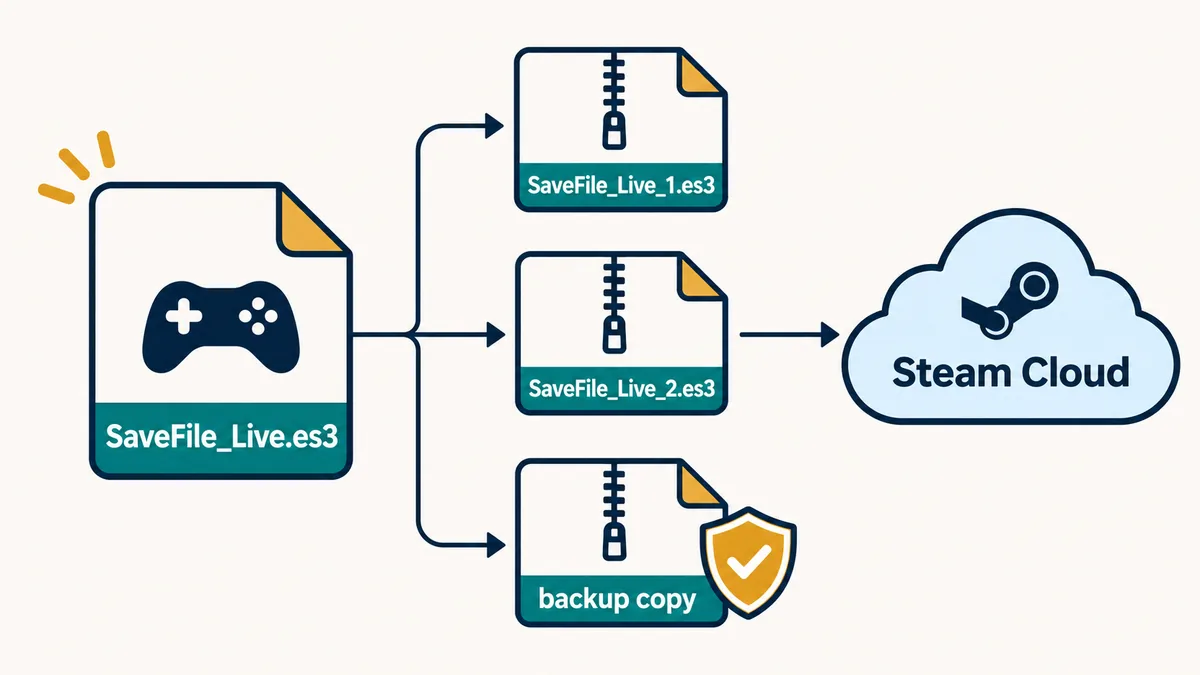
Once you reach the folder, make a simple inventory before changing anything. SaveFile_Live.es3 is the main live save described by the official help article. The same article lists SaveFile_Live_1.es3 through SaveFile_Live_5.es3 as automatic backups. You may also see files named SaveFile_Live_backup_YYYYMMDD_HHMMSS.es3, which provide an extra timestamped recovery option.
Player.log and Player-prev.log are runtime logs, not save files. They can help explain a crash or a missing item, but renaming a log to look like a save will not restore progress. Treat .es3 files as binary data: copy them, preserve their names, and do not edit them in a text editor while you are still investigating.
| Type | Use | Safe handling |
|---|---|---|
| Live | Current progress | Copy before any recovery attempt |
| Numbered | Automatic backup | Compare time and result before choosing |
| Timestamped | Additional recovery point | Keep the original filename |
| Log | Troubleshooting evidence | Do not substitute it for a save |
- SaveFile_Live.es3: the current live progress that should be preserved first.
- SaveFile_Live_1.es3 to _5.es3: automatic backup candidates; the number alone does not prove which is newest.
- SaveFile_Live_backup_YYYYMMDD_HHMMSS.es3: timestamped backup candidates.
- Player.log and Player-prev.log: diagnostic logs, not replacements for a save.
Before uploading an .es3 file to any third-party utility, check its privacy, retention, and deletion terms. This site does not request save uploads.
Make a safe backup before replacing anything
The most damaging recovery mistake is overwriting the current file before you know which copy is correct. Exit the game, wait for Steam Cloud to finish, and copy the entire TaskBarHero folder to another location. A name such as TaskBarHero_backup_2026-11-16_before-recovery records both the date and the reason. Use another drive, a removable device, or a trusted backup destination so one disk failure cannot remove both copies.
Keep a before-operation copy and an after-operation copy when you test a recovery. Record the file names, sizes, modified times, Steam Cloud state, and game version. Do not rename a candidate, remove its extension, or delete the original until you have launched the game and checked more than one progress signal.
- Exit the game and wait for the Steam sync indicator to finish.
- Copy the complete TaskBarHero folder, not only the file that looks newest.
- Add the date and purpose to the backup folder name.
- Record file size, modified time, client version, and Cloud state.
- Keep the original backup until a later restart confirms the result.
- 1. Stop Close the game and wait for Cloud synchronization to settle.
- 2. Copy Copy TaskBarHero as a whole folder to a safe location.
- 3. Note Record names, times, sizes, and the PC that last held the correct progress.
- 4. Test Try one recovery candidate at a time and keep the original evidence.
A backup lowers risk but cannot guarantee recovery. A copy on the same failing disk is not a complete backup plan.
Check Steam Cloud before moving to another PC
With Steam Cloud enabled, the Taskbar Hero save location on the PC is only one copy of the data. Cloud synchronization uses the most recently uploaded save, so the older PC does not automatically win when you move to a new computer. Decide which machine has the correct character, Act, gear, and currency before you launch the game on the destination PC.
Starting the game on a new PC before checking the options can upload an empty or outdated state. If the local modified time and Cloud upload time disagree, close the game and record both. The official Steam Cloud Storage page can expose the files available in Cloud. Treat a conflict dialog as a decision point: keep both local copies, compare the dates, and only then choose which one to restore.
| Situation | Do first | Avoid |
|---|---|---|
| Local copy is newer | Preserve the folder, then inspect Cloud | Syncing a blank save on the new PC |
| Cloud copy is newer | Record Cloud and rename the local backup | Overwriting the only older copy |
| Time is unclear | Keep both copies and read official guidance | Deleting by guesswork |
- Choose the PC with the correct progress before starting the destination copy.
- Compare the last Cloud upload with each local modified time.
- If a conflict appears, preserve both choices instead of deleting one immediately.
- Copy a Cloud .es3 file into the local folder only while the game is closed.
- Pause syncing Do not keep launching while a conflict is visible; record the message first.
- Compare candidates Line up dates, file sizes, and the last PC used for each copy.
- Restore once Choose one candidate, launch, and verify the progress before repeating.
The developer help article warns that Steam Cloud is based on the most recently uploaded data. Recheck current official wording after a game update.
Recover missing progress without destroying evidence
When a save appears to be missing, stop playing on the new state. Continuing can write that state to local storage or Cloud and make the original evidence harder to identify. Close the game and rename or copy the current TaskBarHero folder before you test anything. Then follow the order used by the pinned Steam recovery FAQ: verify the installed files, inspect Steam Cloud, confirm the local save location, and test a backup candidate.
Test one candidate at a time and check the character, Act, gold, equipment, and other visible progress after launch. A recovery is not proven by reaching the title screen. Restart the game, observe the next Cloud sync, and confirm that the same progress remains before you clean up old copies. If an item or account state is still wrong, keep the logs and backups for official support instead of editing the .es3 file.
| Symptom | First check | Next candidate |
|---|---|---|
| Folder is missing | Confirm the user profile and path | Steam Cloud and official support |
| Game opens at zero progress | Preserve the current copy | Cloud and automatic backups |
| Only an item is missing | Keep logs and all backups | Official recovery instructions |
| Cloud conflict | Record both dates | Compare without overwriting |
- Preserve the current folder in a dated location.
- Use Steam Library properties to verify installed game files.
- Check Cloud files and the synchronization time.
- Try numbered or timestamped backups one at a time.
- Confirm several progress signals after a restart and another sync.
- Preserve evidence Copy the current folder so the starting state cannot be lost.
- Verify the install Rule out damaged game files through Steam's installed-file check.
- Choose one candidate Use dates and notes to select Cloud, numbered, or timestamped data.
- Confirm the result Check progress after launch, restart, and the next Cloud event.
This guide cannot guarantee recovery and does not recommend direct editing or deletion. Follow the developer's support process for account or item restoration.
Steam Deck and Linux save-path notes
On Steam Deck or Linux with Proton, the Windows LocalLow path sits inside a Proton prefix. The exact compatdata and AppID path can vary with the Steam setup, so do not hard-code a path copied from a third-party tool. Search the active prefix for TesseractStudio and TaskBarHero, and confirm that the folder contains the same .es3 names before you copy anything.
For a move, archive the Windows folder and keep it untouched. On the Deck, close the game, locate the matching LocalLow folder, and copy the data there. Cloud still needs a decision before the first launch. The Linux guide covers Proton and window compatibility; this section only covers protecting and locating save data.
- Find AppData/LocalLow inside the active Proton prefix.
- Do not assume one AppID or username path works for every setup.
- Make sure the game is completely closed on the Deck.
- Keep pre-move and post-move folders separate while Cloud is checked.
- Locate Open the active compatdata prefix and follow the LocalLow path.
- Preserve Keep the Windows source folder before copying to the Deck.
- Compare Check character and gear after launch, then watch for a Cloud overwrite.
Proton layouts vary by environment. Use the Linux guide and official Steam information for compatibility details beyond the save path.
Before and after checklist
Save work is safer when the order is explicit. Before the change, close the game and record Cloud status and the current folder. During the change, work from copies and never edit the live file directly. After the change, check several progress signals and verify that the same state remains after a restart and the next synchronization event.
Knowing the Taskbar Hero save location is only the first part of recovery. A single note containing the path, file names, timestamps, Cloud state, and client version gives you a useful record for another PC or for official support. Finding the folder is not a reason to delete or rename files without a backup.
- □ The game and active synchronization were stopped.
- □ The full TaskBarHero folder was copied elsewhere.
- □ Live files, numbered backups, timestamped copies, and logs were separated.
- □ Local and Cloud times were recorded.
- □ Progress was checked after restart and synchronization.
- Before Close the game and write down the local and Cloud state.
- During Use one copy at a time and keep the original backup read-only.
- After Restart, sync, and verify character, Act, gear, and currency.
Keep this checklist with the backup and reuse it before a PC move or a major update.
Taskbar Hero save location FAQ
Where is the Taskbar Hero save location?
On Windows, the developer lists %USERPROFILE%\AppData\LocalLow\TesseractStudio\TaskBarHero. Paste it into Win + R or the File Explorer address bar.
Is copying SaveFile_Live.es3 enough?
There may also be numbered automatic backups and timestamped copies. Copy the complete folder after closing the game so you keep more than one recovery option.
Should I use Steam Cloud or the local save?
Compare dates and visible progress first. Cloud follows the most recently uploaded data, so repeated launches can overwrite the state you hoped to recover.
What should I do first when a save disappears?
Close the game and preserve the current folder under a new name. Then check installed files, Cloud, and numbered backups one at a time.
Can I edit an .es3 file to restore an item?
Direct editing is not recommended. Keep the original files and use the developer's support and recovery process.
Is the Steam Deck path identical to Windows?
The data sits under LocalLow inside a Proton prefix, but the AppID and directory can vary. Locate the real TesseractStudio/TaskBarHero folder in your setup.
Sources checked
The developer help article is the source for the path and file names. The recovery order was compared with the pinned Steam Community FAQ. Search-result order was not treated as a ranking claim.
- Nugem Studio: Where Are My Save Files? Official help covering LocalLow, primary files, automatic backups, and Steam Cloud (published July 22, 2026).
- Steam Community: TBH Save Data Recovery Guide Pinned community recovery order covering file verification, Cloud, location, and backups.
- Official Steam listing First-party store facts for the game and platform context.